Managing Your Knowledge Base
Review suggestions, set auto-approve thresholds, manage expertise areas, and export your knowledge graph.


LumaVista continuously extracts knowledge from your research, documents, and conversations. But extraction is only half the story. The other half is curation — deciding what to keep, how to organize it, and when to let the system approve things automatically so you are not buried in review tasks.
This guide covers the tools you have for managing your knowledge base day to day.
The review queue
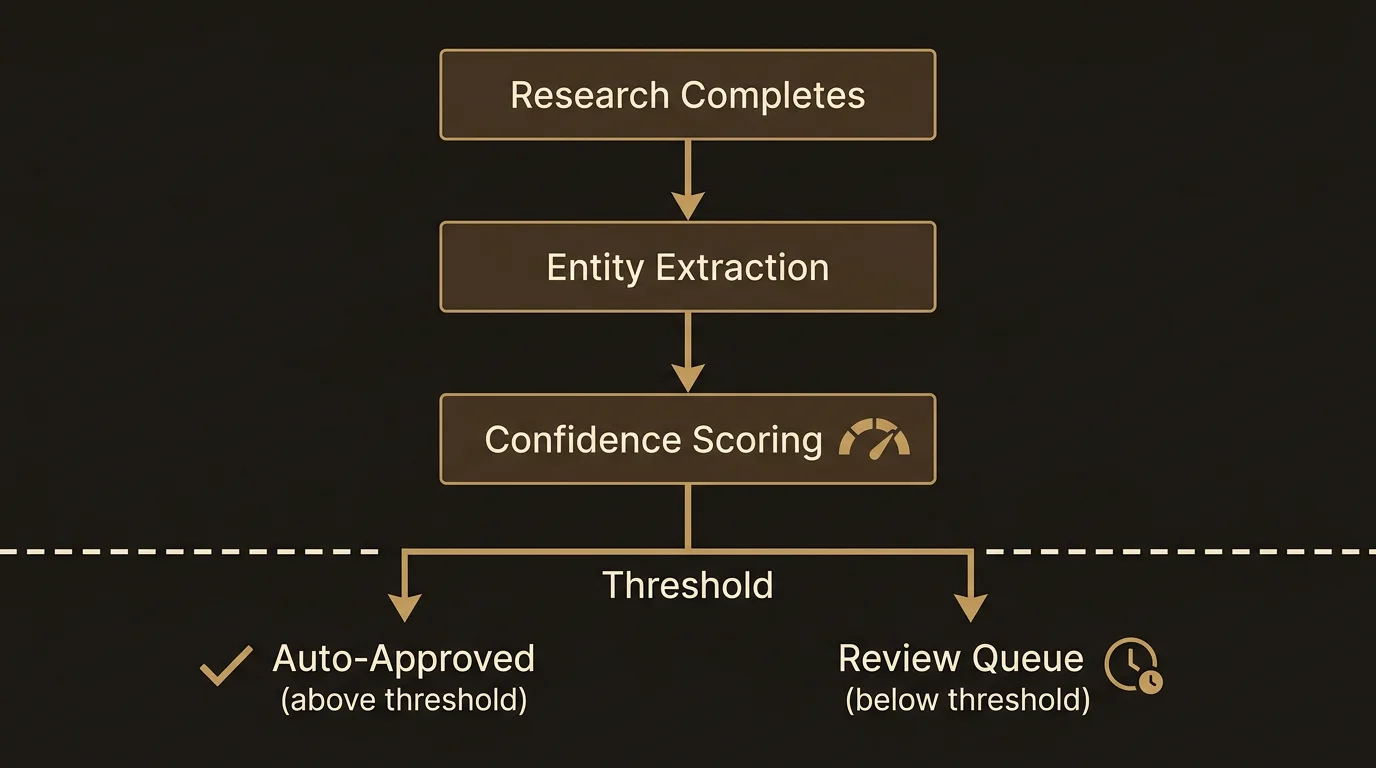
Every piece of extracted knowledge passes through a review step before it becomes part of your permanent knowledge graph. When entities are extracted from a completed research node or an uploaded document, they land in the review queue — unless they meet your auto-approve threshold (covered below).
Finding the review queue
Open the Memory page from the main navigation. The review queue is accessible via the tab bar at the top, alongside your entity browser. A badge shows the count of pending items.
You will also see a notification badge on the Brain icon in the top navigation bar whenever items are waiting for your review. The badge shows the count (or “99+” if you have been busy).
Reviewing individual items
Each review item is a card showing:
- The extracted entity name and type
- A description of the knowledge
- The source excerpt — the specific text this entity was derived from
- The confidence score assigned by the extractor
- A link to the source (research node, document, or chat session)
For each item, you have four options:
- Approve. Accept the entity as-is. It is added to your knowledge graph with a confidence boost to at least 0.8.
- Edit and Approve. Opens an editor where you can change the entity name, type, description, aliases, or temporal validity before saving it. Useful when the extractor got the gist right but the details need polish.
- Dismiss. Discard this extraction. The entity is not added to your graph.
- Dismiss and Block Similar. Discard and tell LumaVista not to extract similar entities in the future. Useful for recurring noise — entity types or names that keep appearing but are not relevant to you.
Contradiction alerts
When the extractor finds a new fact that conflicts with something already in your graph, both entities appear together in the review queue with a side-by-side comparison. You can keep the new fact, keep the old one, keep both (with an explanation of why they are not actually contradictory), or merge them into a single updated entity.
Batch approve
If you trust the extractor and just want to accept everything, the Approve All button at the top of the review queue approves every pending item in one click. This is especially useful when you have been running several projects and have dozens of items queued up.
Auto-approve threshold
For many users, reviewing every extracted entity is tedious. The auto-approve threshold lets you skip the review queue for high-confidence extractions.
How it works
In Memory Settings, you will find a slider for the auto-approve threshold. The default is 0.00 (disabled) — all entities go to the review queue. Slide it up to set a minimum confidence level for automatic approval:
- 0.85 — Only very confident extractions skip review. A good starting point.
- 0.70 — More permissive. Most well-supported facts get auto-approved; ambiguous ones still come to you.
- 0.50 — Aggressive. Nearly everything the extractor identifies gets saved automatically. Only genuinely uncertain extractions reach your queue.
Auto-approved entities are saved directly to your knowledge graph. They do not appear in the review queue at all. You can always browse your full entity list to edit or remove anything that was auto-approved.
When auto-approve does not apply
Even with a high threshold, certain situations always require manual review:
- Contradictions. If a new entity contradicts an existing one, it goes to the review queue regardless of confidence. LumaVista will not silently overwrite your existing knowledge.
- Duplicate candidates. When the extractor identifies something that looks very similar to an existing entity, it routes to review so you can decide whether to merge or keep both.
Editing your entities
Every entity in your knowledge graph is fully editable. Open the Memory page, select an entity, and click the pencil icon to open the editor. You can change:
- Name — the canonical label for this entity
- Entity type — concept, person, technology, organization, event, fact, or custom
- Description — the summary that LumaVista uses for retrieval and prompt enhancement
- Aliases — alternative names (comma-separated) that should resolve to this entity
- Temporal validity — “valid from” and “valid until” dates for time-bound facts
- Tags — your own custom labels for organization
- Importance — a 1-to-5 priority rating that influences retrieval ranking
- Notes — personal annotations that are not used by the system but visible to you
Editing an entity resets its confidence to 1.0 — your manual verification is the strongest signal.
Organizing with topics
Topics group related entities together. They are the primary way to browse your knowledge graph by subject area rather than scrolling through a flat list.
Auto-generated topics
When the extraction pipeline runs at “deep” depth, it suggests topic groupings for newly extracted entities. For example, extracting entities from a research project about cloud infrastructure might produce a suggested topic called “AWS Cost Optimization” grouping entities like “Reserved Instances,” “Savings Plans,” and “Spot Fleet.”
Managing topics
You can create topics manually, rename them, and control their membership:
- Adding entities to a topic. Select a topic in the topic explorer, then click “Add entities.” A search dialog lets you find entities to include.
- Removing entities. When viewing a topic, entity cards show checkboxes. Select the ones you want to remove and click “Remove selected from topic.”
- Creating new topics. Use the Create Topic button and give it a name and description.
Topics can be scoped — global topics are visible everywhere, while project-scoped topics appear only within that project’s context.
The memory sidebar
You do not need to be on the Memory page to see your knowledge in action. The Memory sidebar is accessible from anywhere in LumaVista via the Brain icon in the top navigation bar (or the keyboard shortcut Ctrl+Shift+M).
The sidebar adapts to your current context:
- On a project page. Shows entities scoped to that project, plus inherited global entities.
- In a chat session. Shows entities that are relevant to the current conversation.
- Anywhere else. Shows your global-scoped entities.
From the sidebar, you can search your knowledge base, click through to full entity details on the Memory page, or create new entities with the scope automatically pre-set to match your current context.
Memory settings
The Settings view on the Memory page gives you control over extraction behavior across all your projects.
Global defaults
- Transparency mode. Controls how LumaVista shows you prompt enhancements. “Always Preview” asks for approval, “Research Only” previews for projects but stays silent in chat, “Silent” enhances queries without asking.
- Default confidence threshold. The minimum confidence for an extraction to survive filtering before reaching the review queue.
- Default max entities per run. Limits how many entities a single extraction run can produce (default 20).
- Default extraction depth. Shallow (entities only), Standard (entities + relationships), or Deep (entities + relationships + topic suggestions).
Per-scope extraction
Below the global defaults, you will find a table of your projects and workspaces. Each row lets you toggle extraction on or off and override the global defaults for depth and threshold. Scopes that are not explicitly configured inherit the global settings.
Export and import
You can export your entire knowledge graph — or a specific scope — as JSON or Markdown.
- JSON export preserves the full graph structure: entities, relationships, topics, metadata, and confidence scores. You can import this file later to restore your knowledge base or transfer it to another account.
- Markdown export produces a human-readable document. Useful for archiving or sharing your knowledge outside LumaVista.
Both export options are available from the header bar on the Memory page. Import accepts JSON files matching the export schema.
Practical tips
- Start with auto-approve at 0.85. It catches the obvious extractions while still routing uncertain ones to you. Lower the threshold as you build trust in the extractor.
- Review weekly, not daily. Let items accumulate and batch-approve the obvious ones. Spend your time on contradictions and edge cases.
- Use topics for expertise areas. If you research several distinct domains, create a topic for each one. This makes it easier to see how deep your knowledge runs in each area.
- Tag liberally. Tags are cheap and searchable. Use them for cross-cutting concerns that do not fit neatly into topics — “needs-verification,” “from-client,” “deprecated.”
- Check the sidebar during research. Before starting a new project, open the memory sidebar to see what LumaVista already knows about the domain. It helps you frame better research questions.
Related guides
- Your Knowledge Graph — how entities, relationships, and confidence work under the hood
- Uploading Documents for Research — adding your own documents to the knowledge pipeline