Your Keys, Your Devices: How LumaVista Encryption Works
By Gösta von Stebut
Researched and drafted with LumaVista. The argument, the edits and every claim are mine. Colophon
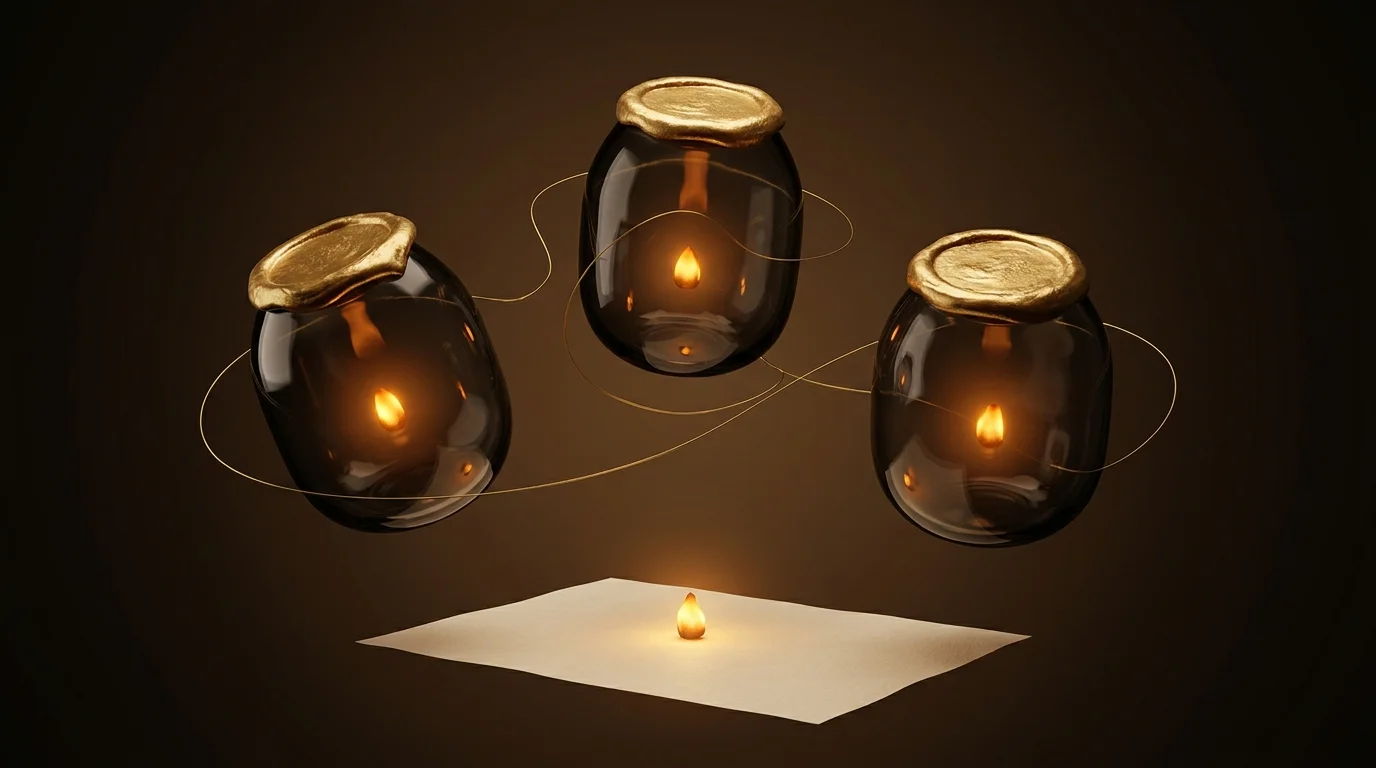
Most services that encrypt your data also hold the keys. It’s the convenient choice, and it means that whoever can reach their servers can also read your files.
LumaVista works the other way round. Your keys are generated on your devices, wrapped so that only your devices can open them, and what reaches our servers is the wrapped result. We store material we can’t read.
Updated 13 October 2026: this describes your account key and your Private area. You can now also switch on an always-on space, so automations run while you are away. For that one space our servers keep a wrapped key and can open it; each opening is written to the space’s access log. Switch it off and our key for it is destroyed. See Private vs always-on.
You don’t have to turn any of this on. It’s set up for you when you create your account, before you’ve written anything worth protecting.
What happens when you sign up
Right after you create your account, before you reach the app, five things happen in your browser:
- Your device generates an X25519 keypair. The private half never leaves it.
- A Master Key Encryption Key is generated — 256 random bits.
- A data key is generated for your content.
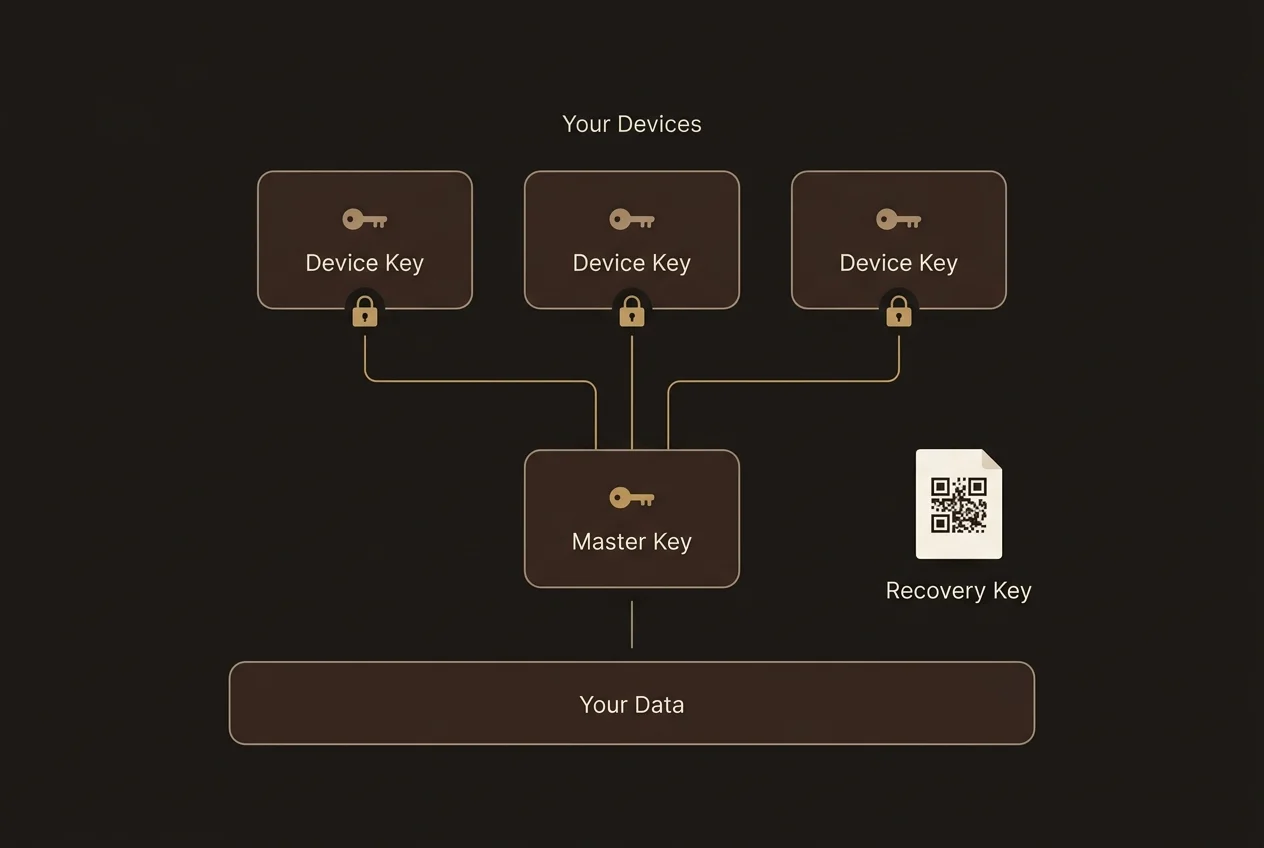
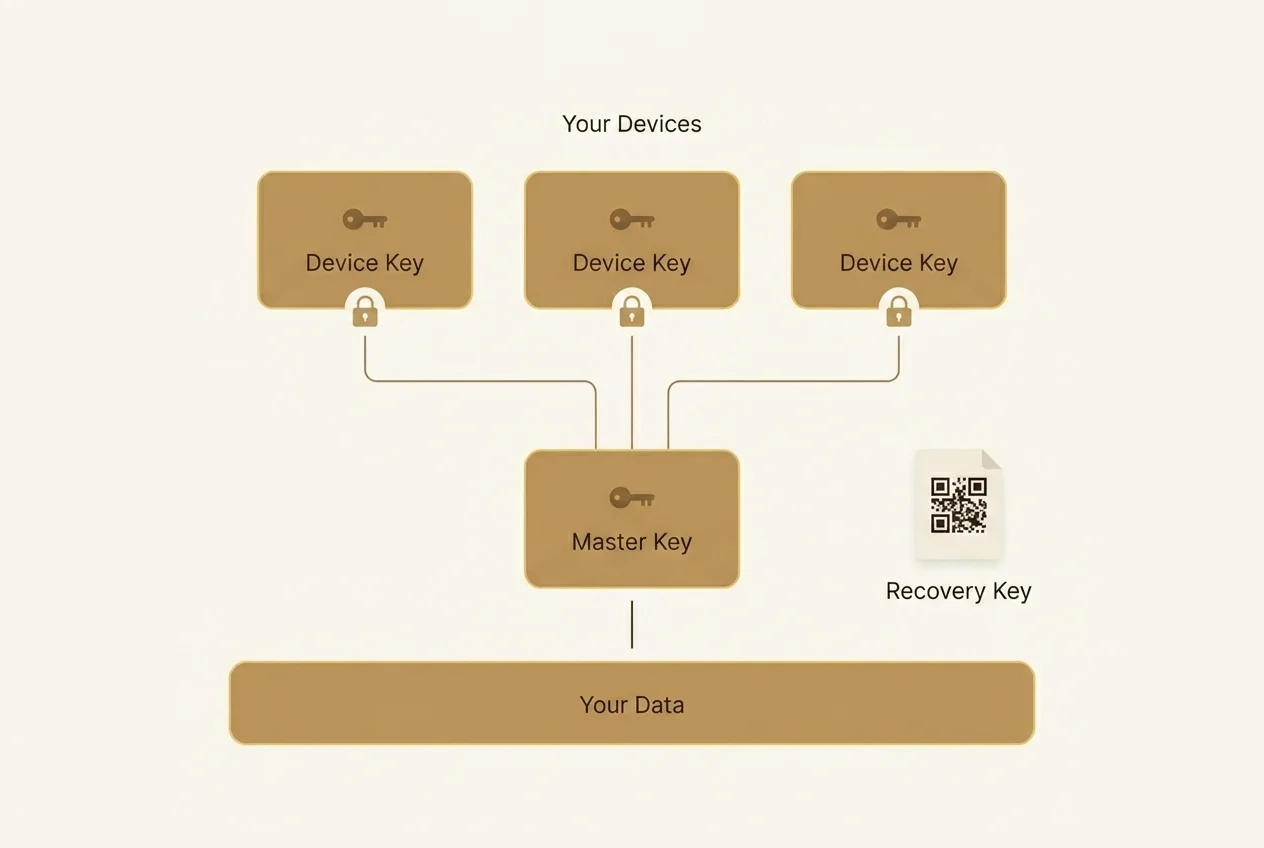
- The Master KEK is wrapped to your device’s public key, so only that device can unwrap it.
- Your data key is wrapped under the Master KEK.
Only then does anything reach our servers, and what reaches them is the wrapped material. The cryptography is libsodium — NaCl box for wrapping keys, Argon2id and XChaCha20-Poly1305 for recovery.
Step 4 is worth pausing on, because it isn’t the obvious design. We don’t copy one shared key onto all your machines. Each device gets its own sealed copy of the same Master KEK, wrapped to that device’s public key alone. That’s slightly more bookkeeping, and it’s what makes revoking a device cheap later: the revoked device simply no longer has a copy it can open, and nothing has to be rotated or re-downloaded anywhere else.
Your recovery key
The last step of signup hands you a recovery key: a QR code you can print or save.
It exists because your devices are the only things that can open your data, and devices get lost. The QR is the way back in from a machine that was never enrolled, after the ones that were are gone.
What’s in it is the password-wrapped copy of your Master KEK — ciphertext, not a key. Printing it is safe: on its own it opens nothing. To use it you need the QR and the credential it’s paired with, which is your login password on a normal account, or a separate recovery passphrase if you signed in through SSO. The printed sheet never contains the password itself.
That pairing is the part worth remembering. On a password account, your login password is what wraps your recovery copy — so it’s doing more work than a login password usually does, and it’s worth making it a long one from a password manager. Argon2id makes guessing expensive, which is not the same as impossible.
When you change your password, that wrapped copy is re-wrapped under the new one automatically, because something has to unwrap the Master KEK first — which needs a device that holds your device key.
And if you change your password somewhere that doesn’t have one, a borrowed laptop or a fresh browser, you get an explicit choice rather than a silent surprise: finish the change on a device that can re-wrap it, or knowingly keep a recovery copy that still needs your old password. The comment on that branch in our code puts it well — a stale recovery blob must be a stated outcome.
Adding a second device
At least one of your devices is an anchor: it can approve new ones.
Sign in somewhere new and that device generates its own keypair and files an enrollment request. The request appears in Settings → Devices on your anchor, and you approve it there. Your anchor unwraps the Master KEK with its own private key and re-wraps it to the new device’s public key, so your key material passes from one of your devices to another rather than through us.
Two details:
Requests expire after ten minutes. A pending approval is a small opening into your account, so it stays a short one. Miss the window and the new device files a fresh request.
The anchor is checked before the approval is claimed. If the device you’re approving from isn’t a valid, unrevoked anchor, the request is refused outright rather than left stuck in a pending state until it times out.
Losing a device
Open Settings → Devices on any device you still have, select the missing one, revoke it. Its wrapped key material stops being valid immediately, so it can’t unwrap anything again. There’s a checkbox to end that device’s active sessions at the same time, which is what you want when a laptop is genuinely gone rather than just retired.
Revocation can’t reach into a device you no longer control and erase what’s already on its disk — nothing can. What it does is make sure that device never receives anything new.
What’s coming: the mobile companion app
We’re building a companion app for iOS and Android. Its job is a focused one: to be another anchor.
Right now your anchors are browsers, which means approving a new device means getting to a machine where you’re already signed in. A phone is the device you actually have with you, so it’s the natural place to approve a laptop from — and the natural second anchor to keep, so that losing one machine never leaves you with none.
It won’t be a second LumaVista client. Your research stays in the web app. The companion app handles keys: approving enrollments, revoking devices, and holding a copy of your Master KEK on hardware you carry.
It’s in development and there’s nothing to download yet. We’ll say so here when there is.
In the meantime, the web app installs to your phone’s home screen and your dock and behaves like a native app — here’s the guide. There’s no app store involved and nothing to update, because it loads the current version from the server each time it opens.
The limits, plainly
It’s session-locked. Your keys are available while your session is unlocked. Lock or sign out and features that touch encrypted data stop working rather than falling back to something weaker. That’s deliberate — the alternative is a server-side copy of your key.
Updated 13 October 2026: an always-on space, if you switch one on, is the exception. Workflows bound to it keep running while you are signed out, because our servers keep a wrapped key for that one space and log every opening. Your Private area stays session-locked. See Private vs always-on.
Your device key lives in browser storage. It’s tied to that browser on that device and deliberately survives signing out, so you’re not re-enrolling every morning. It isn’t behind a fingerprint prompt. If someone has your unlocked machine, they have your session, the same as with your email.
We can’t recover your account for you. Lose your password and your recovery key, with no enrolled device left, and the encrypted data stays encrypted. That’s the direct cost of us not holding a key, and it’s why the recovery key is worth five minutes at signup.
What to do now
- Find your recovery key and put it somewhere durable — printed in a drawer, or saved in your password manager. If you clicked past it at signup, changing your password issues a fresh one: the sheet is shown again once the new copy is wrapped.
- Check your login password is a strong one. On a password account it wraps your recovery copy, so it’s worth a long passphrase rather than something you type from memory.
- Enroll a second device while your first one still works. Enrollment needs an existing device to approve it, so one anchor is one point of failure.
- Look at Settings → Devices and revoke anything you don’t recognise or no longer use.
- Change your password from an enrolled device, so the recovery copy re-wraps cleanly.
- Put the web app on your phone if you want it there — here’s how.